
1. Text Channel Permissions
If muted members are still able to send messages in a text channel, the issue is usually caused by incorrect @everyone (or member role) permissions.1
Set the channel permissions
Go to the channel’s Settings → Permissions tab. Locate the @everyone role (or your main member role) and make sure the Send Messages permission is set to Neutral (/) — not enabled.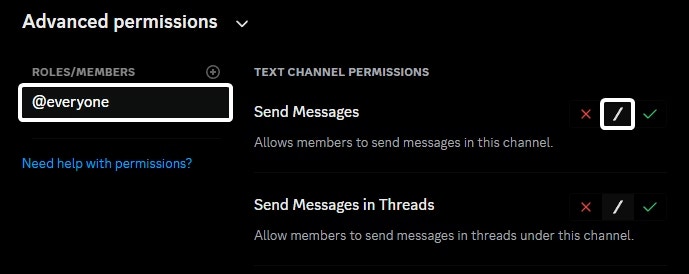
2
Check server-wide role permissions
Go to Server Settings → Roles. Select the @everyone role (or your custom member role) and ensure that Send Messages is not enabled globally.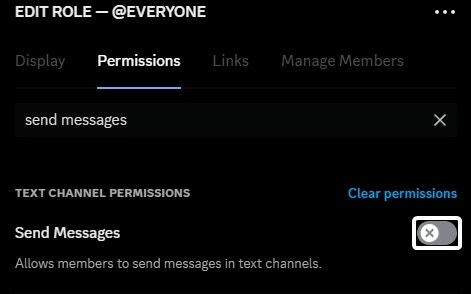
3
Check for role overrides
Review the channel’s permission overrides. If any specific role has Send Messages enabled, it will override the @everyone settings and allow members with that role to continue sending messages.
2. Voice Channel Permissions
If your VoiceMaster channels are not working as expected due to permission issues, you have two main options:- Manage permissions at the category level so all channels inside inherit the correct settings.
- Configure the permissions correctly in the Join-to-Create channel. When new temporary channels are created, the bot duplicates the permissions from that channel.
3. Lockdown Command
If your server uses a custom member role instead of the default @everyone role, make sure the lockdown command is configured to restrict that specific role.@everyone.