> ## Documentation Index
> Fetch the complete documentation index at: https://docs.cursebot.site/llms.txt
> Use this file to discover all available pages before exploring further.
# Customization
> Personalize @curse’s appearance to ensure it aligns perfectly with your server’s unique identity and aesthetic.
### Overview
Transform the presence of **@curse** in your community by setting a custom avatar, banner, or bio. This allows you to create a seamless, branded experience that makes your server stand out from the rest.
**Note:** This feature is actively monitored and logged. Uploading inappropriate content will result in the **immediate removal** of the bot from your server and permanent **blacklist**.
Only the **Server Owner & Administrators** have the authority to use these commands. Ensure all hosted image URLs are from reliable sources.
## 1. Customizing @curse’s Avatar
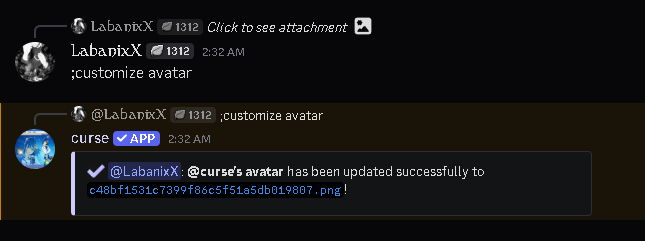
The avatar is the face of the bot in your member list and chat logs. Updating the profile picture of **@curse** allows it to blend perfectly with your server’s icon, seasonal themes, or specific aesthetic.
### 1. 1. Set Avatar
Changes the bot's profile image to your provided link/attached image.
```javascript File Example theme={null}
;customize avatar https://cursebot.site/pfp.png
```
```javascript File Syntax theme={null}
;customize avatar (avatar)
```
 ### 2. 2. Reset to Default
Removes the custom banner and restores the default look.
```javascript File Syntax theme={null}
;customize banner reset
```
## 2. Customizing @curse’s Banner
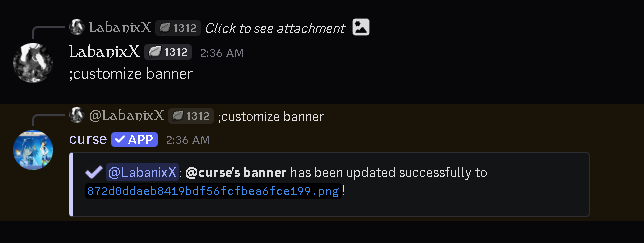
The profile banner is the first thing users see when they click on the bot's profile. Use this space to showcase server artwork, important announcements, or a color palette that complements your community's vibe.
### 2. 1. Set Banner
Applies a custom background image to the bot's profile.
```javascript File Example wrap theme={null}
;customize banner https://cursebot.site/banner.jpg
```
```javascript File Syntax theme={null}
;customize banner (banner)
```
### 2. 2. Reset to Default
Removes the custom banner and restores the default look.
```javascript File Syntax theme={null}
;customize banner reset
```
## 2. Customizing @curse’s Banner
The profile banner is the first thing users see when they click on the bot's profile. Use this space to showcase server artwork, important announcements, or a color palette that complements your community's vibe.
### 2. 1. Set Banner
Applies a custom background image to the bot's profile.
```javascript File Example wrap theme={null}
;customize banner https://cursebot.site/banner.jpg
```
```javascript File Syntax theme={null}
;customize banner (banner)
```
 ### 2. 2. Reset to Default
Removes the custom banner and restores the default look.
```javascript File Syntax theme={null}
;customize banner reset
```
## 3. Customizing @curse’s Bio
To ensure users can always find support, if you do not manually include `https://cursebot.site/` or `discord.gg/cursebot` in your text, these links will be automatically appended to the bottom.
The bio is your opportunity to give **@curse** a "personality" or provide quick-access information. Use this section to explain the bot's role in your server, list helpful commands, or simply add a welcoming message.
### 3. 1. Set Bio
Updates the "About Me" section with your custom description.
```javascript File Example theme={null}
;customize bio always here to help!
```
```javascript File Syntax theme={null}
;customize bio (bio)
```
### 2. 2. Reset to Default
Removes the custom banner and restores the default look.
```javascript File Syntax theme={null}
;customize banner reset
```
## 3. Customizing @curse’s Bio
To ensure users can always find support, if you do not manually include `https://cursebot.site/` or `discord.gg/cursebot` in your text, these links will be automatically appended to the bottom.
The bio is your opportunity to give **@curse** a "personality" or provide quick-access information. Use this section to explain the bot's role in your server, list helpful commands, or simply add a welcoming message.
### 3. 1. Set Bio
Updates the "About Me" section with your custom description.
```javascript File Example theme={null}
;customize bio always here to help!
```
```javascript File Syntax theme={null}
;customize bio (bio)
```
 ### 3. 2. Reset to Default
Clears your custom text and restores the default bio.
```javascript File Example theme={null}
;customize bio reset
```
### 3. 2. Reset to Default
Clears your custom text and restores the default bio.
```javascript File Example theme={null}
;customize bio reset
```