> ## Documentation Index
> Fetch the complete documentation index at: https://docs.cursebot.site/llms.txt
> Use this file to discover all available pages before exploring further.
# Permissions
> This section explains how to resolve common channel permission issues and ensure moderation commands work correctly.
## 1. Text Channel Permissions
If muted members are still able to send messages in a text channel, the issue is usually caused by incorrect **@everyone** (or member role) permissions.
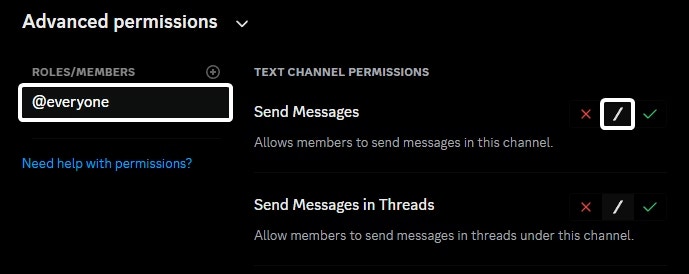
Go to the channel’s **Settings** → **Permissions** tab. Locate the **@everyone** role (or your main member role) and make sure the **Send Messages** permission is set to **Neutral (/)** — not enabled.
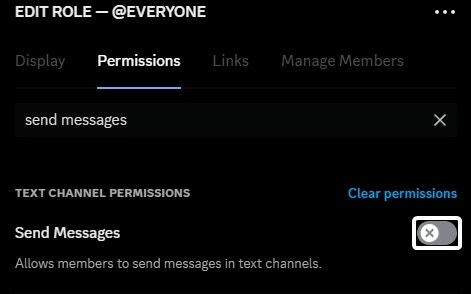
 Go to **Server Settings** → **Roles**. Select the **@everyone** role (or your custom member role) and ensure that **Send Messages** is not enabled globally.
 Review the channel’s permission overrides. If any specific role has **Send Messages** enabled, it will override the @everyone settings and allow members with that role to continue sending messages.
## 2. Voice Channel Permissions
If your **VoiceMaster** channels are not working as expected due to permission issues, you have two main options:
* Manage permissions at the **category level** so all channels inside inherit the correct settings.
* Configure the permissions correctly in the **Join-to-Create** channel. When new temporary channels are created, the bot duplicates the permissions from that channel.
Ensuring the correct permissions are set at either the category or join channel level will prevent issues with newly generated temporary voice channels.
## 3. Lockdown Command
If your server uses a custom member role instead of the default **@everyone** role, make sure the lockdown command is configured to restrict that specific role.
```javascript File Example theme={null}
;lockdown role @member
```
```javascript File Syntax theme={null}
;lockdown role (role)
```
This will apply the lockdown to the specified role instead of `@everyone`.
The permission checks listed above are also required for the lockdown command to function properly.
Review the channel’s permission overrides. If any specific role has **Send Messages** enabled, it will override the @everyone settings and allow members with that role to continue sending messages.
## 2. Voice Channel Permissions
If your **VoiceMaster** channels are not working as expected due to permission issues, you have two main options:
* Manage permissions at the **category level** so all channels inside inherit the correct settings.
* Configure the permissions correctly in the **Join-to-Create** channel. When new temporary channels are created, the bot duplicates the permissions from that channel.
Ensuring the correct permissions are set at either the category or join channel level will prevent issues with newly generated temporary voice channels.
## 3. Lockdown Command
If your server uses a custom member role instead of the default **@everyone** role, make sure the lockdown command is configured to restrict that specific role.
```javascript File Example theme={null}
;lockdown role @member
```
```javascript File Syntax theme={null}
;lockdown role (role)
```
This will apply the lockdown to the specified role instead of `@everyone`.
The permission checks listed above are also required for the lockdown command to function properly.